ActiveMQ with Spring in Eclipse
by Nat Laughlin on 2011-10-26In this tutorial I will show you how to get ActiveMQ with Spring running under Tomcat in Eclipse.
ActiveMQ
ActiveMQ is a message broker that implements the Java Message Service.
nathaniel-laughlins-imac:Desktop natlaughlin$ wget http://apache.opensourceresources.org//activemq/apache-activemq/5.5.1/apache-activemq-5.5.1-bin.tar.gz
--2011-10-26 20:28:04--  http://apache.opensourceresources.org//activemq/apache-activemq/5.5.1/apache-activemq-5.5.1-bin.tar.gz
Resolving apache.opensourceresources.org (apache.opensourceresources.org)... 65.111.178.49
Connecting to apache.opensourceresources.org (apache.opensourceresources.org)|65.111.178.49|:80... connected.
HTTP request sent, awaiting response... 200 OK
Length: 24577261 (23M) [application/x-gzip]
Saving to: “apache-activemq-5.5.1-bin.tar.gz”

100%[====================================================================================================>] 24,577,261   445K/s   in 51s

2011-10-26 20:28:55 (472 KB/s) - “apache-activemq-5.5.1-bin.tar.gz” saved [24577261/24577261]

nathaniel-laughlins-imac:Desktop natlaughlin$ tar -zxf apache-activemq-5.5.1-bin.tar.gz
nathaniel-laughlins-imac:Desktop natlaughlin$ cd apache-activemq-5.5.1
nathaniel-laughlins-imac:apache-activemq-5.5.1 natlaughlin$ ls
LICENSE                WebConsole-README.txt  conf                   example                webapps
NOTICE                 activemq-all-5.5.1.jar data                   lib
README.txt             bin                    docs                   user-guide.html
nathaniel-laughlins-imac:apache-activemq-5.5.1 natlaughlin$ ./bin/macosx/activemq start
Starting ActiveMQ Broker...
nathaniel-laughlins-imac:apache-activemq-5.5.1 natlaughlin$ ./bin/macosx/activemq status
ActiveMQ Broker is running (72926).
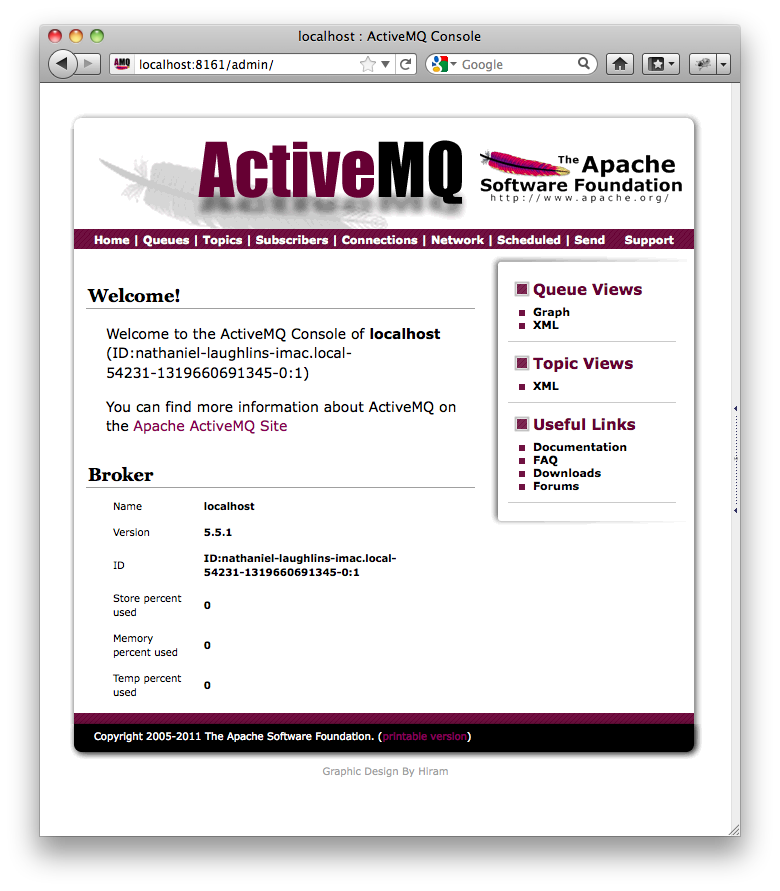
There is a web interface you can use to see your queues and make sure everything is working. Point the browser to http://localhost:8161/admin/.
Tomcat
nathaniel-laughlins-imac:Desktop natlaughlin$ wget http://mirror.cc.columbia.edu/pub/software/apache/tomcat/tomcat-7/v7.0.22/bin/apache-tomcat-7.0.22.tar.gz
--2011-10-26 21:17:50--  http://mirror.cc.columbia.edu/pub/software/apache/tomcat/tomcat-7/v7.0.22/bin/apache-tomcat-7.0.22.tar.gz
Resolving mirror.cc.columbia.edu (mirror.cc.columbia.edu)... 128.59.59.71
Connecting to mirror.cc.columbia.edu (mirror.cc.columbia.edu)|128.59.59.71|:80... connected.
HTTP request sent, awaiting response... 200 OK
Length: 7421415 (7.1M) [application/x-gzip]
Saving to: “apache-tomcat-7.0.22.tar.gz”

100%[======================================================>] 7,421,415    662K/s   in 11s

2011-10-26 21:18:02 (639 KB/s) - “apache-tomcat-7.0.22.tar.gz” saved [7421415/7421415]

nathaniel-laughlins-imac:Desktop natlaughlin$ tar -zxf apache-tomcat-7.0.22.tar.gz
nathaniel-laughlins-imac:Desktop natlaughlin$ cd apache-tomcat-7.0.22
nathaniel-laughlins-imac:apache-tomcat-7.0.22 natlaughlin$ pwd
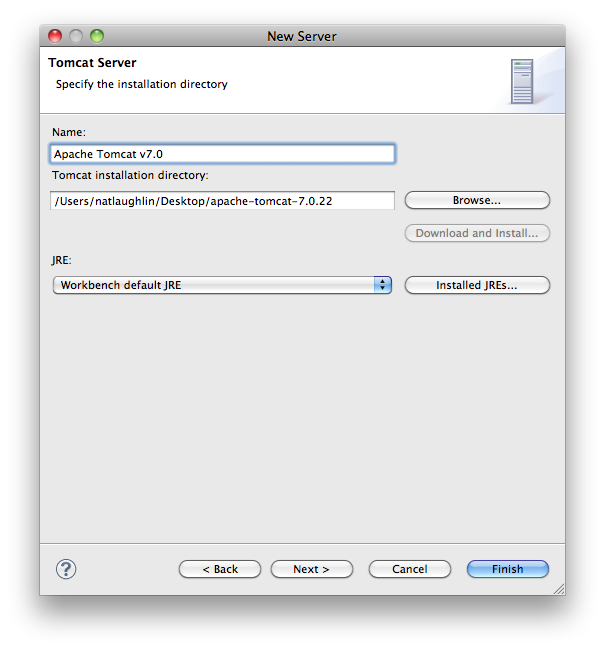
/Users/natlaughlin/Desktop/apache-tomcat-7.0.22
Eclipse and Tomcat
Download Eclipse. I have Eclipse IDE for Java EE Developers Mac OS X 32-bit.
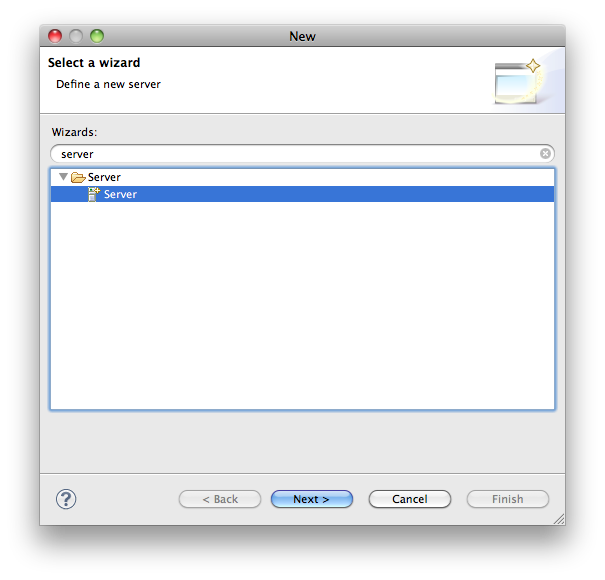
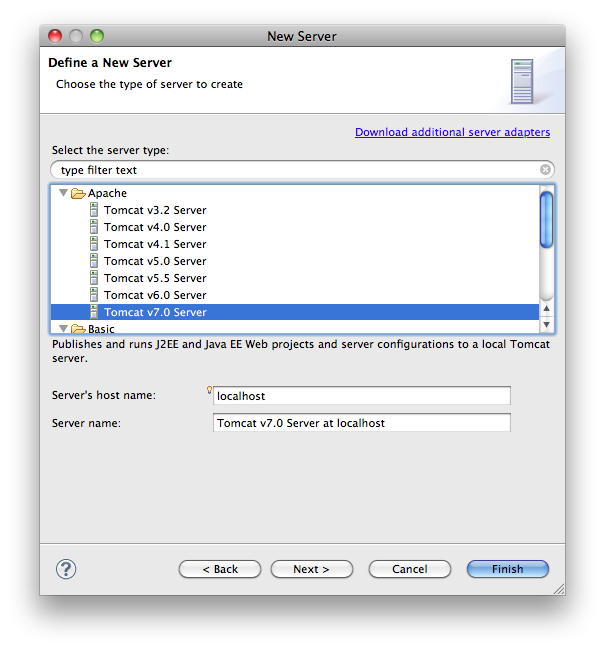
- Open Eclipse
- Select File -> New -> Other and choose Servers
Eclipse Project Import
Download the project ActiveMQSpring.
- Open Eclipse
- Select File -> Import
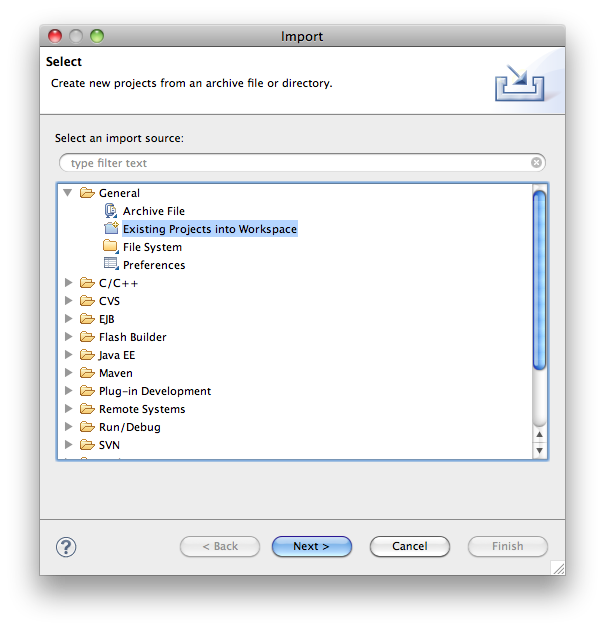
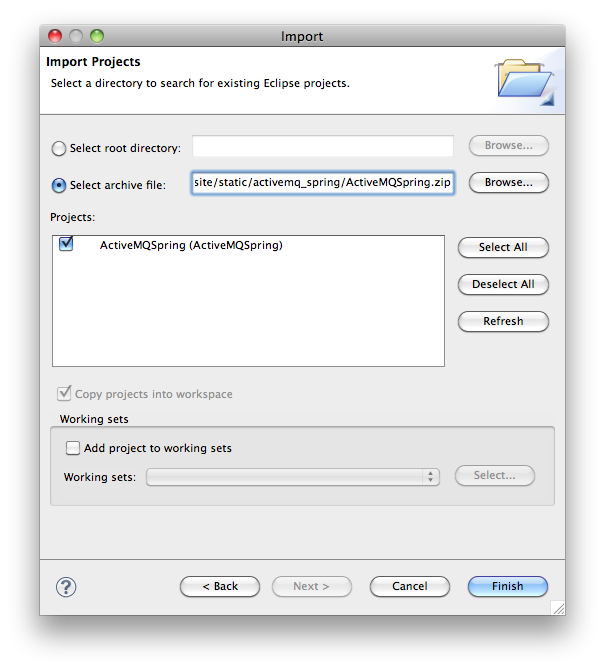
- Now add the project to be automatically deployed to Tomcat.
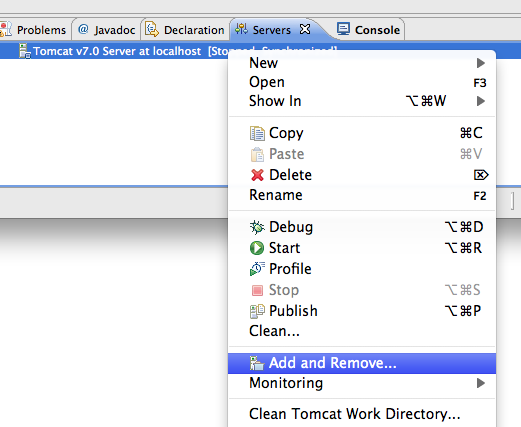
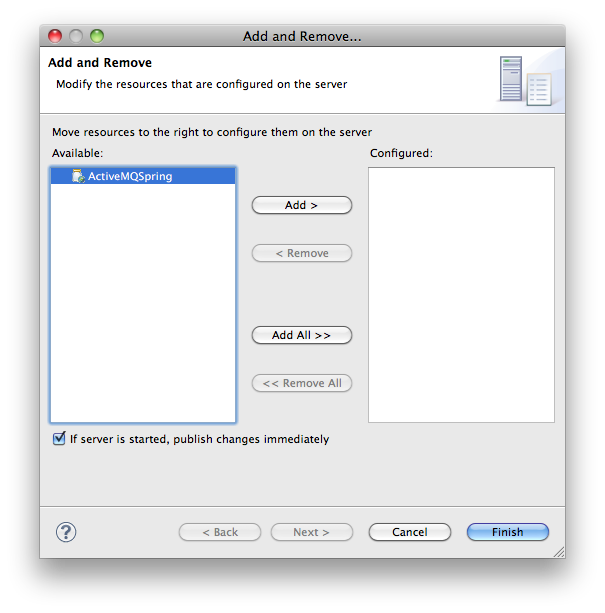
-
Select Add All and Finish
-
Select Run -> Debug to start Tomcat
-
That's it!
Testing
Open your browser and go to http://localhost:8080/ActiveMQSpring/activemq/receive.
Don't worry if nothing happens. It is waiting to process ActiveMQ messages added to the TESTQUEUE queue.
We can add a message to the queue by opening another browser tab at http://localhost:8080/ActiveMQSpring/activemq/send?message=hello123.
If you go back to the receive tab, it should display Message received: hello123.
Spring Configuration
Let's look at WebContent/WEB-INF/applicationContext.xml.
<bean id="broker" class="org.apache.activemq.xbean.XBeanBrokerService">
    <property name="useJmx" value="false"></property>
    <property name="persistent" value="true"></property>
    <property name="transportConnectors">
        <bean class="org.apache.activemq.broker.TransportConnector">
            <property name="uri" value="tcp://localhost:0" />
        </bean>
    </property>
</bean>

<bean id="connectionFactory" class="org.apache.activemq.spring.ActiveMQXAConnectionFactory">
    <property name="brokerURL" value="vm://localhost"></property>
</bean>
I've set up the project to use an internal broker, XBeanBrokerService. This is initialized when Tomcat starts. If we want to connect to the ActiveMQ broker we set up in the first section of this tutorial, comment out the above, and uncomment:
<bean id="connectionFactory"
    class="org.apache.activemq.spring.ActiveMQXAConnectionFactory" >
    <property name="brokerURL" value="tcp://localhost:61616"></property>
</bean>
Maven
If you modify the Maven dependencies through the pom.xml, you may have to redeploy the jar files to the WEB-INF/lib directory. To do this I executed this on the project root:
mvn dependency:copy-dependencies -DoutputDirectory=./WebContent/WEB-INF/lib
Resources
Download Tomcat
Download Eclipse
Download the source Eclipse project ActiveMQSpring
Download the deployable WAR file for ActiveMQSpring
Efficient Lightweight JMS with Spring and ActiveMQ
Maven dependency libraries not deploy in Eclipse IDE
Configuring the ContentNegotiatingViewResolver for Spring 3.0 RESTful services